Experiencing Canvas access issues? Here's a temporary workaround

Experiencing Canvas access issues? Here's a temporary workaround

If you're having trouble accessing Canvas from home, cafés or mobile networks, you can use RMIT myDesktop to stay connected to your learning while the issue is being resolved.

Some students may currently experience difficulties accessing Canvas when connecting through external Wi-Fi networks, such as those at home or in cafés, or through mobile networks. This is due to unexpected restrictions from certain local Internet Service Providers (ISPs). 

The RMIT IT team is actively working with the relevant parties to resolve the issue. 

In the meantime, if you're unable to access Canvas through your usual connection, you can use myDesktop as a temporary alternative to access your course materials and continue your studies.

How to access Canvas through RMIT myDesktop

Follow these five simple steps: 

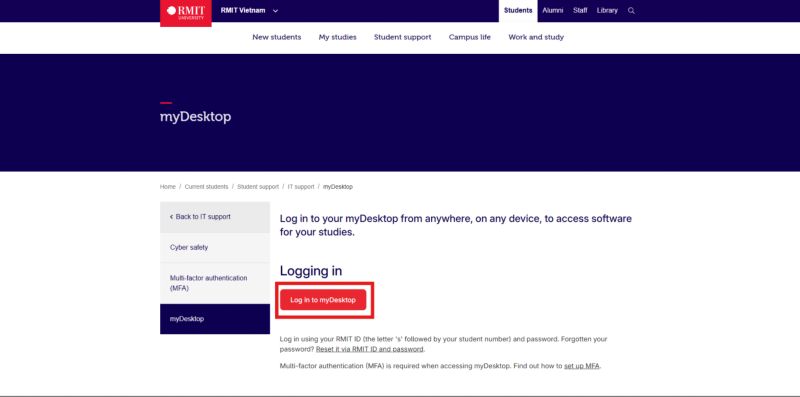
Step 1: Log in to RMIT myDesktop 

Visit RMIT myDesktop and log in using your RMIT credentials (Microsoft login).

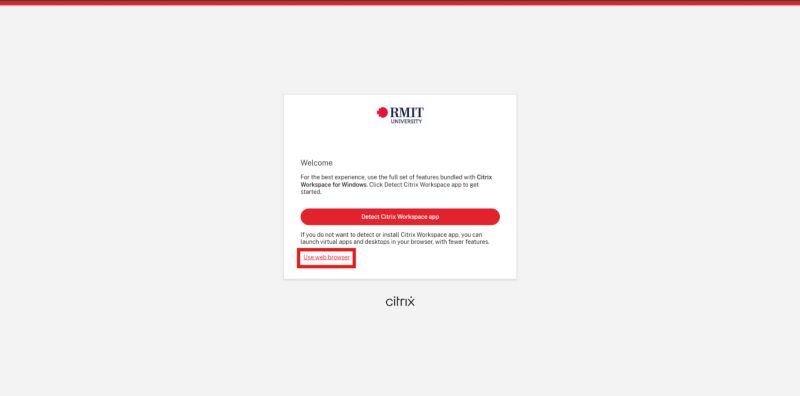
Step 2: Select "Use web browser" 

Once you've successfully logged in and authenticated with your RMIT email, select "Use web browser" to continue. 

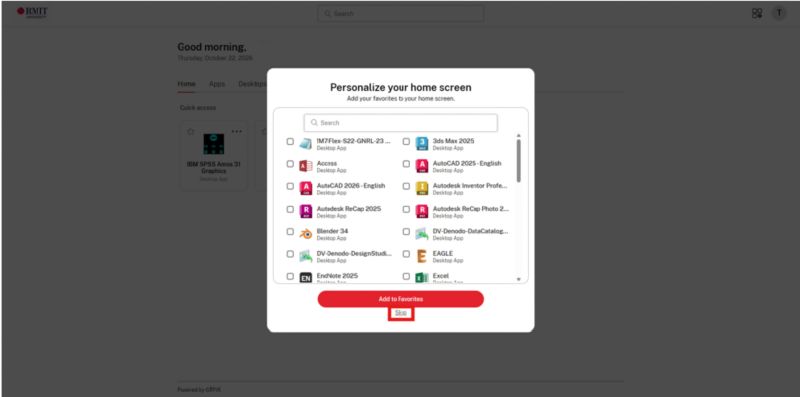
Step 3: Select "Skip" 

When prompted to personalise your home screen, select "Skip" to proceed. 

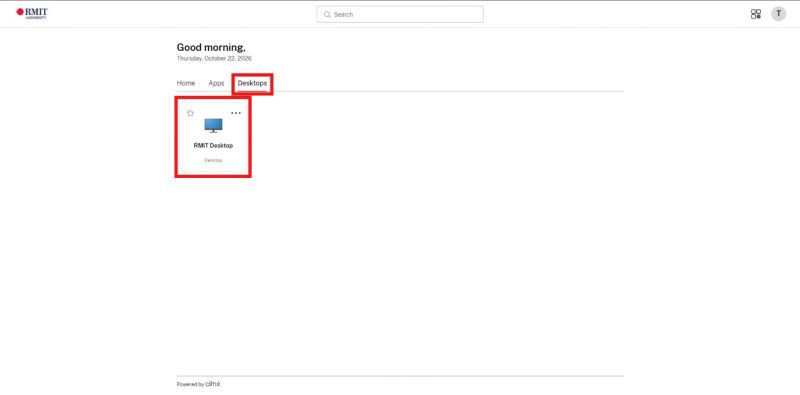
Step 4: Open RMIT Desktop 

Click the "Desktops" tab, then select "RMIT Desktop" to launch your virtual desktop. 

Step 5: Access Canvas 

RMIT Desktop will automatically load your profile and take you to the main desktop screen without requiring another login. 

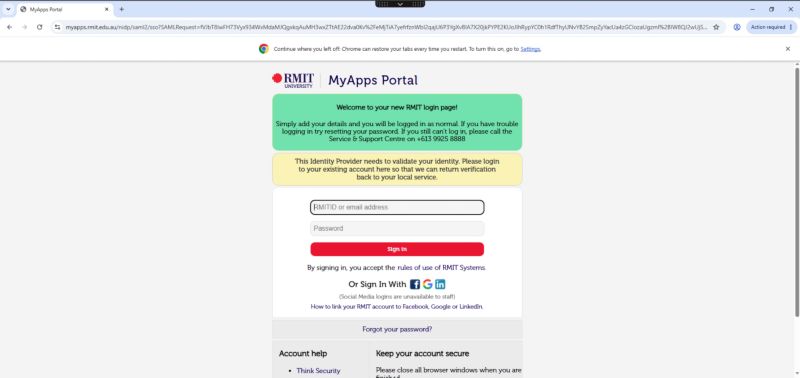
From there, open any web browser within the virtual desktop and log in to Canvas through the RMIT MyApps Portal as you normally would. 

Important: If you're prompted to enter a username and password while the virtual desktop is starting up, simply close the browser tab and launch RMIT Desktop again. 

Stay connected to your learning

This workaround is available while the RMIT IT team continues working to resolve the Canvas access issue. 

Thank you for your patience and understanding. If you know other students experiencing similar difficulties, please share these instructions to help them stay connected to their studies. 

Need help?

Contact IT Support for further assistance. 

28 October 2026

Share

More news